
Your crosshair. Your clips. One app.
Use Crosshair Studio and save gameplay clips in Momento, a Windows 11 gaming toolbox. Explore the workflow, local files, Microsoft Store download and paid access.
Momento · Windows 11
Capture a compatible game window on Windows 11 and keep the video on your PC. Choose which games to capture; availability depends on the game, display mode and hardware.
Windows 11 · Account and purchase in the app
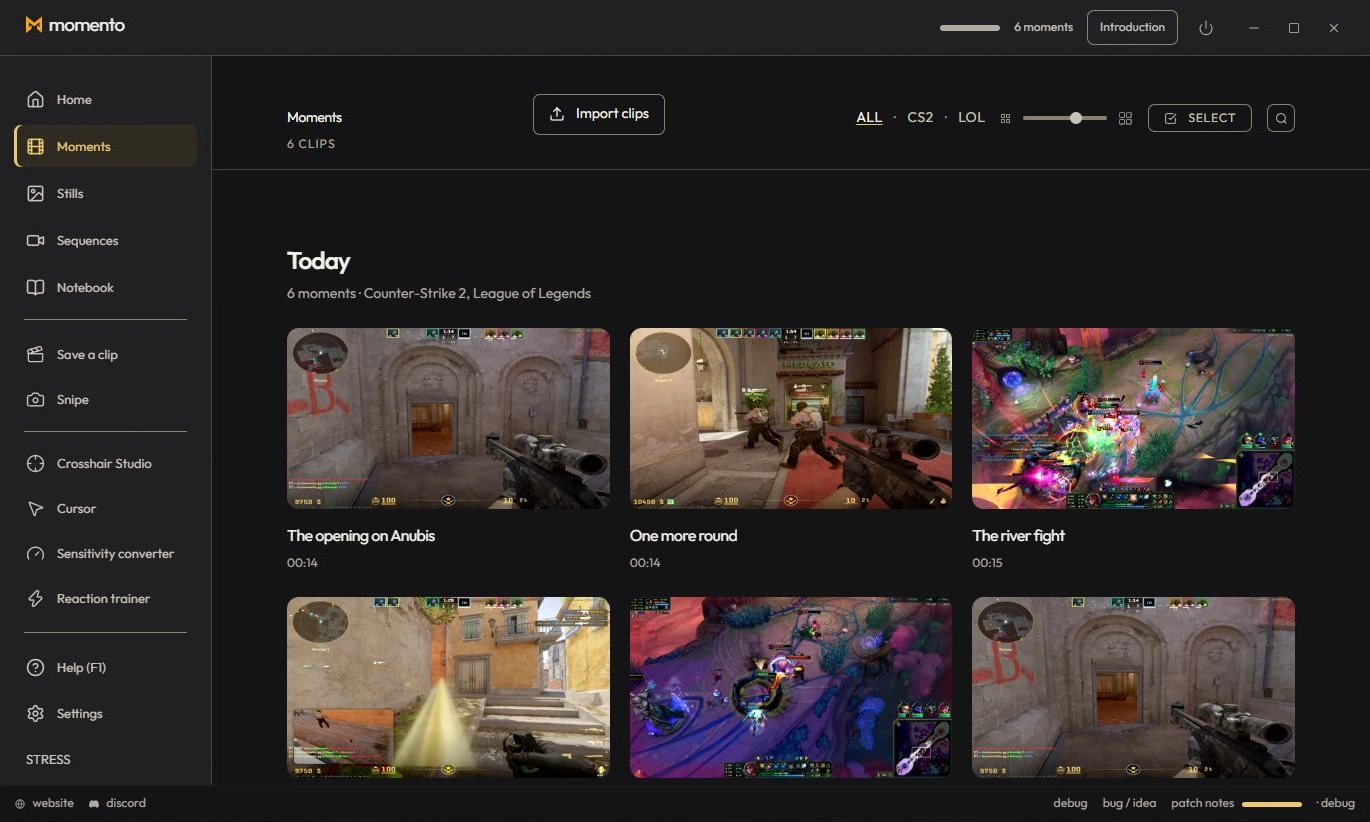
Game recognition and capture compatibility depend on the game, display mode and PC. CS2, LoL, TFT, Dota 2 and Valorant are in the product scope; this does not mean every configuration has been tested.
Capture arms as soon as Momento is open. Launch a game: Momento detects it and starts monitoring the match. The capsule at the top confirms which game is being tracked.
Momento uses Windows Graphics Capture targeted at the game window. It does not inject into the game or read its memory.
Compatibility depends on the tested game and configuration. Using Windows capture APIs is not a guarantee of acceptance by every anti-cheat or competition.
Capture uses GPU encoding when supported. Its effect on performance depends on the hardware, game and recording settings.
If capture disrupts your game, try a lighter quality setting and compare with capture disabled on the same PC. No universal FPS gain or cost is guaranteed.
Crosshair and clips in one app
Use Crosshair Studio and save gameplay clips in Momento, a Windows 11 gaming toolbox. Explore the workflow, local files, Microsoft Store download and paid access.