
Choose your PC gaming tools with Momento
Choose a Windows 11 gaming toolbox for your needs: crosshairs, gameplay clips, editing, screenshots, notes and sensitivity conversion in Momento.
Momento · Windows 11
Set your replay length to 30, 60 or 100 seconds. During an active game capture, use Ctrl+F9 to save the last moments. You can change the shortcut.
Windows 11 · Account and purchase in the app
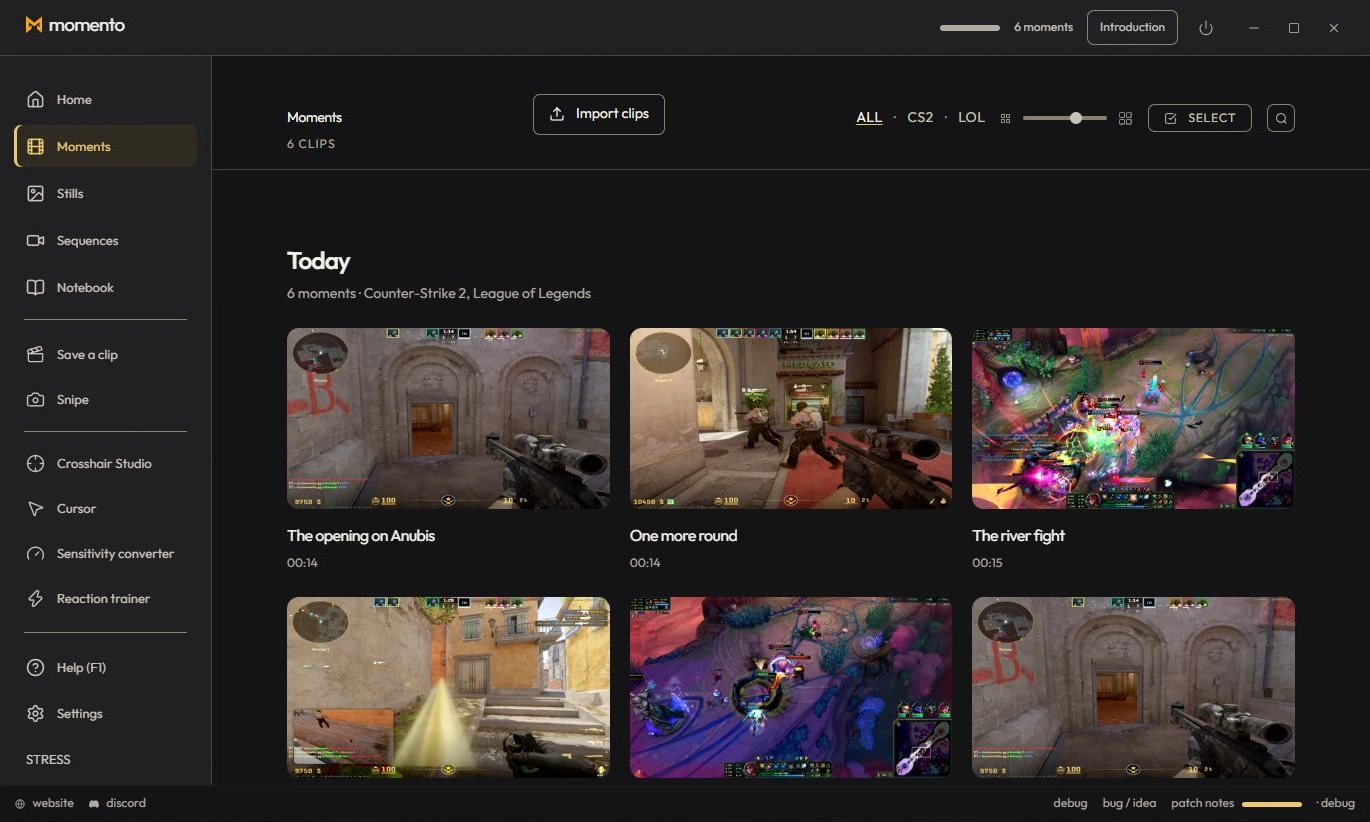
In-game, press Ctrl+F9 (the default shortcut) to keep the last few seconds. You can also click “Keep the moment” in the capture capsule at the top.
An anti-spam guard prevents double triggers: a quick double press only creates one clip. Capture must be active (a game detected) for Ctrl+F9 to work.
While a game is being captured, a rolling buffer keeps recent video in temporary files. Save a clip to keep the action that just happened.
The buffer is bounded and reuses its temporary storage. Only clips you save or automatic moments you enable are kept in your library.
The length of automatic clips (triple, ace, pentakill…) is set by the action and isn’t configurable.
A small sound confirms that a clip was kept. You choose which one.
Your clips appear in the Moments tab. On disk, they’re stored by default in Videos\Momento — the location is changeable in Settings → Storage.
Each shortcut is changed via the “Change” button. There you’ll also find “Replace the Windows capture tool” (on by default — when off, Snipe returns to Ctrl+Shift+S) and its “Apply now” button.
Crosshair and clips in one app
Choose a Windows 11 gaming toolbox for your needs: crosshairs, gameplay clips, editing, screenshots, notes and sensitivity conversion in Momento.
Use Crosshair Studio and save gameplay clips in Momento, a Windows 11 gaming toolbox. Explore the workflow, local files, Microsoft Store download and paid access.