
From a game clip to an annotated Notebook
Replay a Moment, extract a frame as an Instant, annotate the image and pin your media in Notebook. Connect game clips, screenshots and notes in Momento.
A gaming toolbox can help at different points in a session. Start with the result you want: prepare your aim, keep an action, work on an image or collect your notes. Momento brings these tools together in one Windows 11 app.
Windows 11 · Account and purchase in the app
For a custom reticle, use Crosshair Studio. Adjust its shape, size, colour and outline, then keep separate profiles for compatible games.
Explore this tool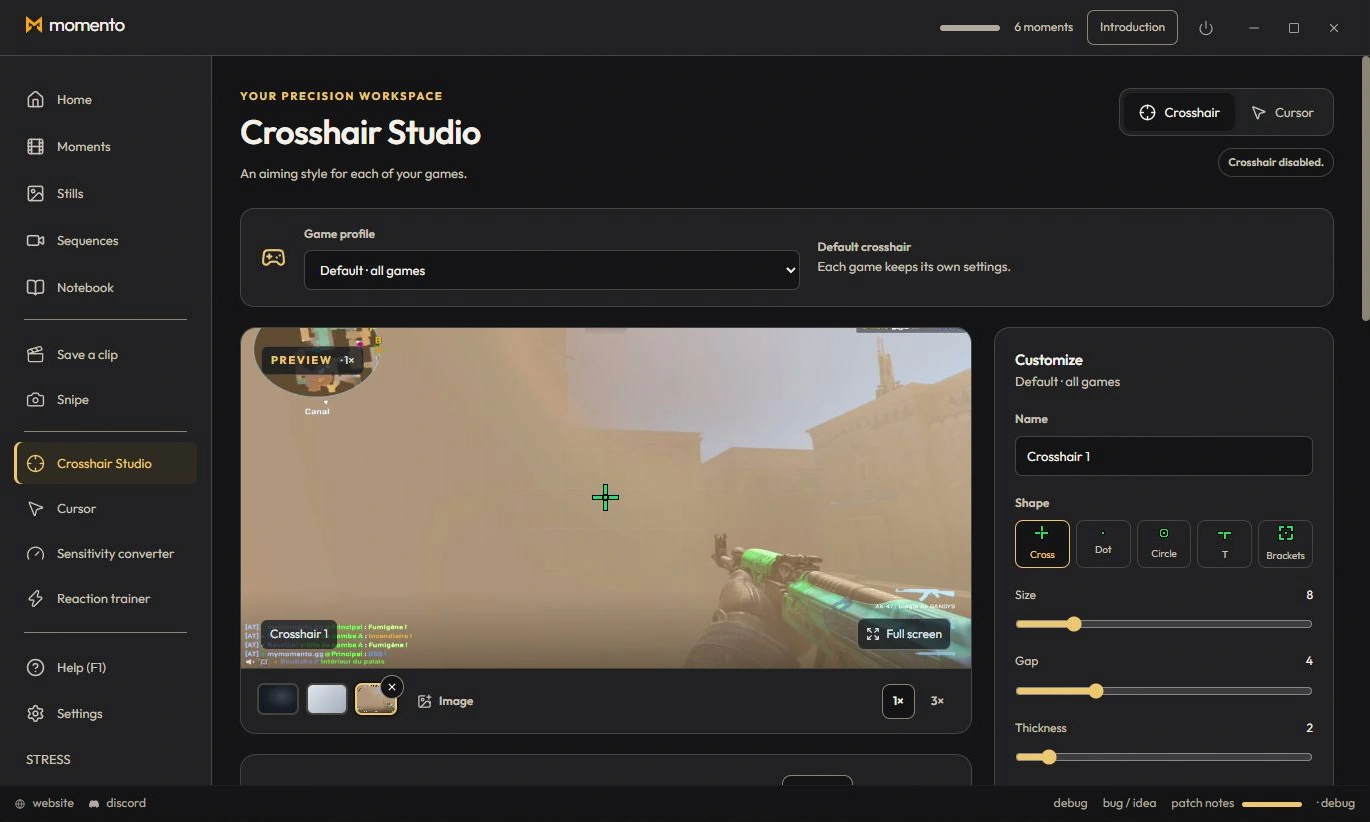
To keep an action that just happened, save a clip with Ctrl+F9 while game capture is active. Find the recent video in Moments and replay it when you choose.
Explore this tool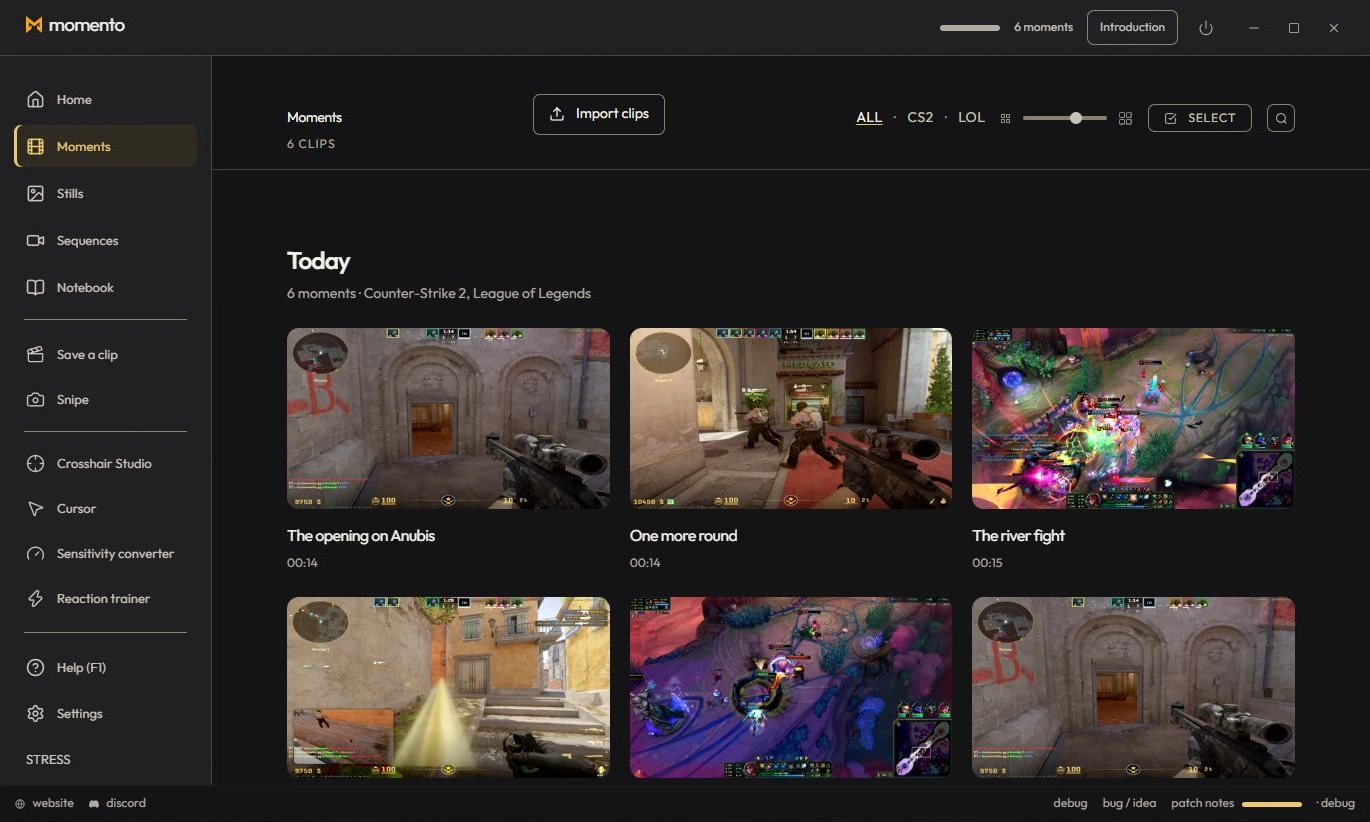
To keep the useful part of a clip or long recording, open the video editor. Cut passages, adjust their speed and mix the available audio tracks for the MP4 you save.
Explore this tool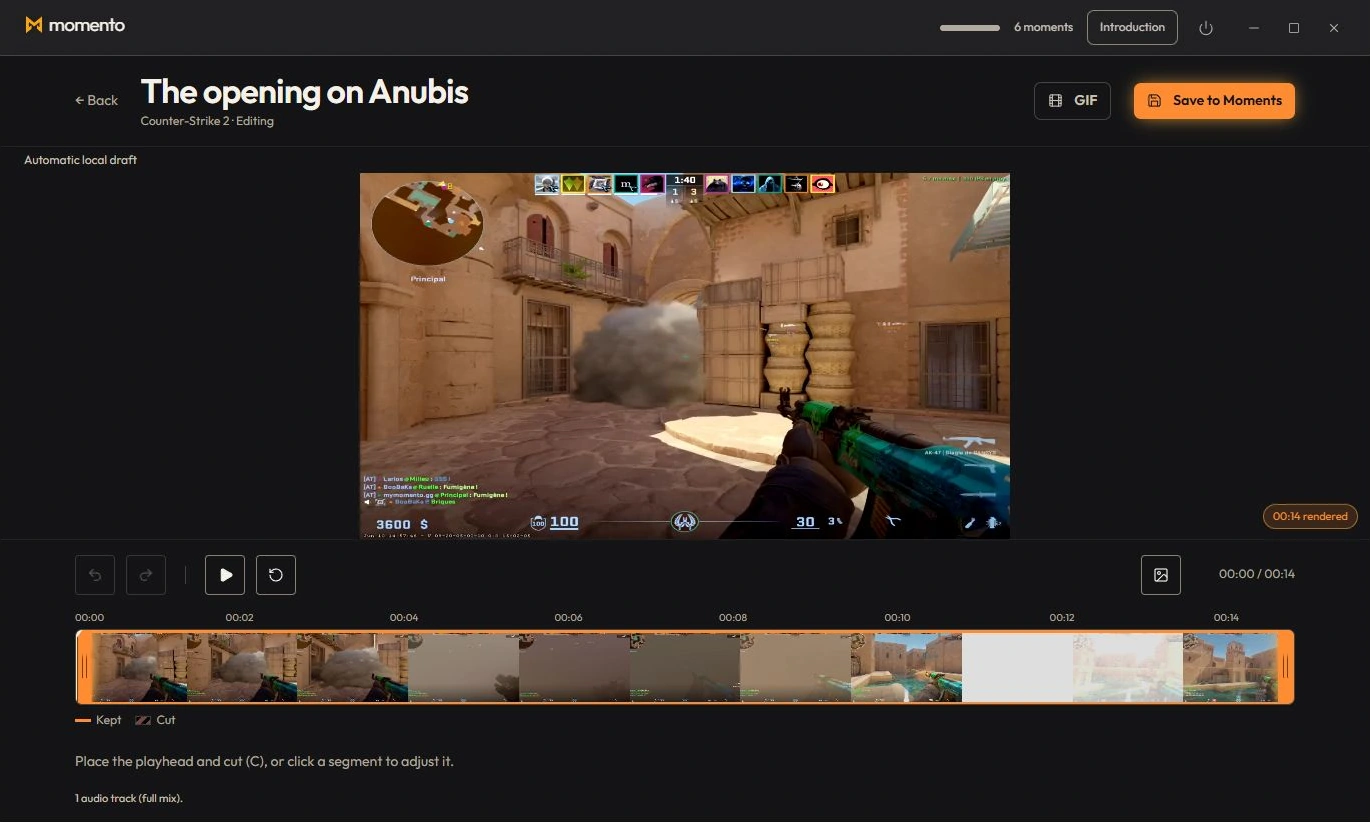
For a useful image, save an Instant. Open it from the gallery to annotate it in the image editor or read and translate its text on demand.
Explore this tool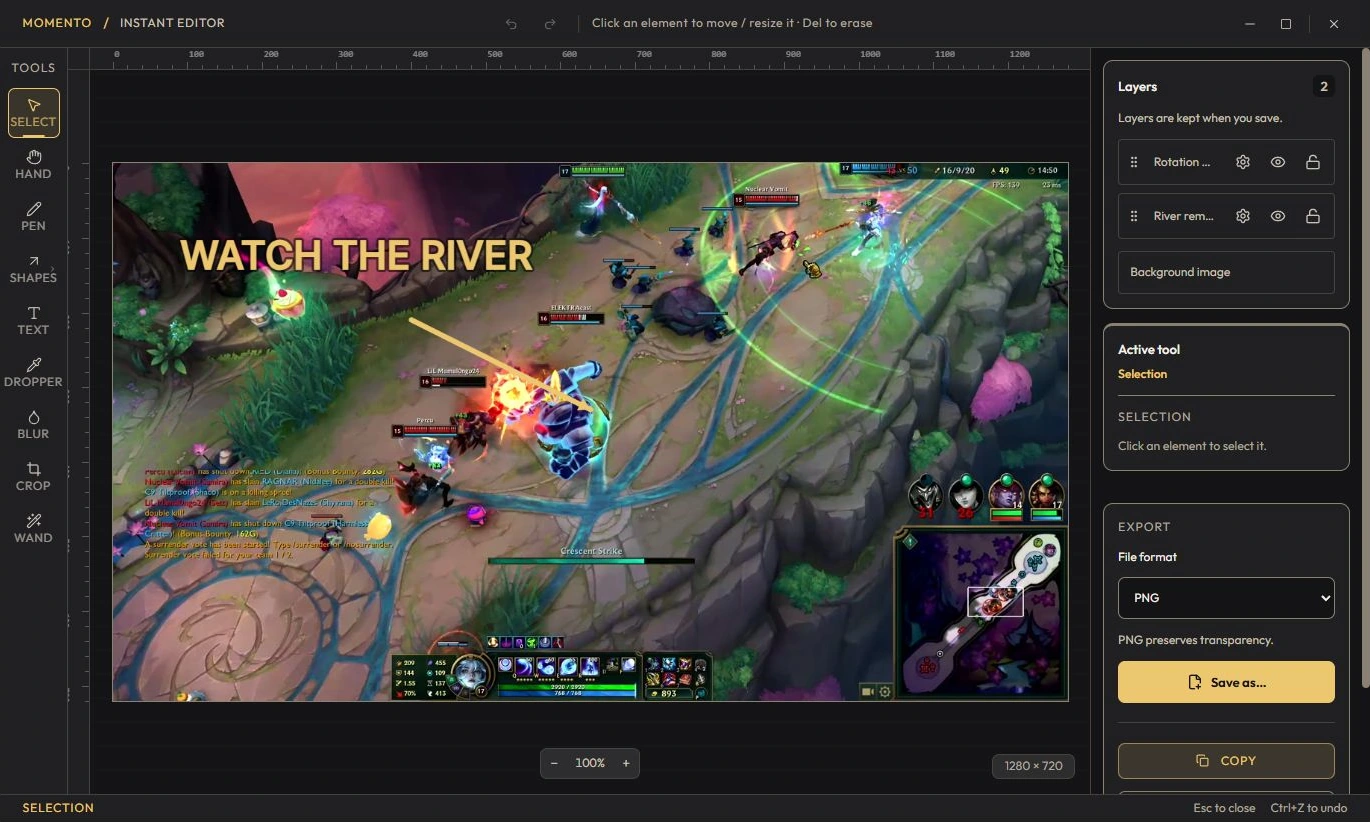
For a build, strategy or checklist, use Notebook. Keep your explanations beside pinned Moments and Instants, or arrange your ideas on a whiteboard.
Explore this tool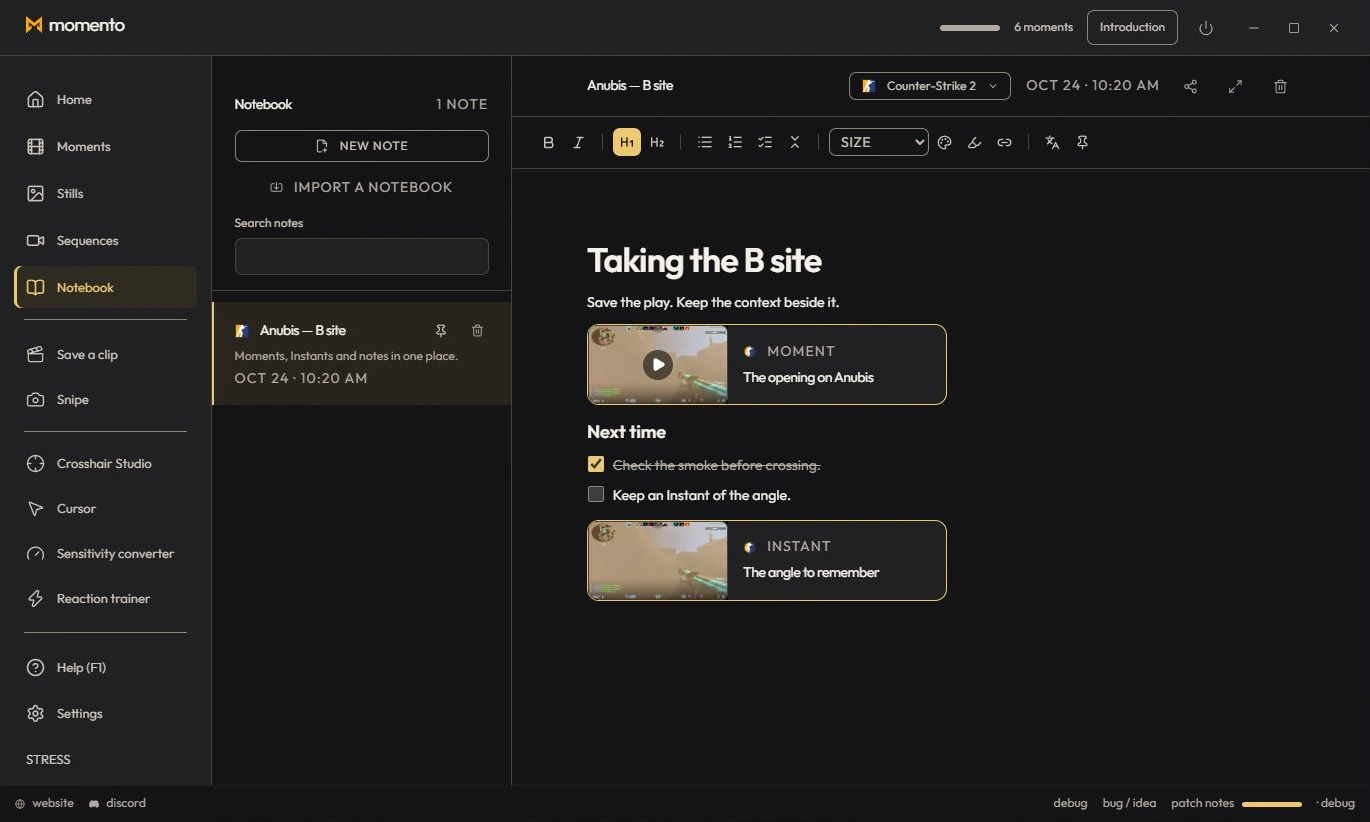
When moving between games, use the sensitivity converter to calculate a value with the same cm/360° distance. Enter the source and target DPI, then check the result in the target game.
Explore this tool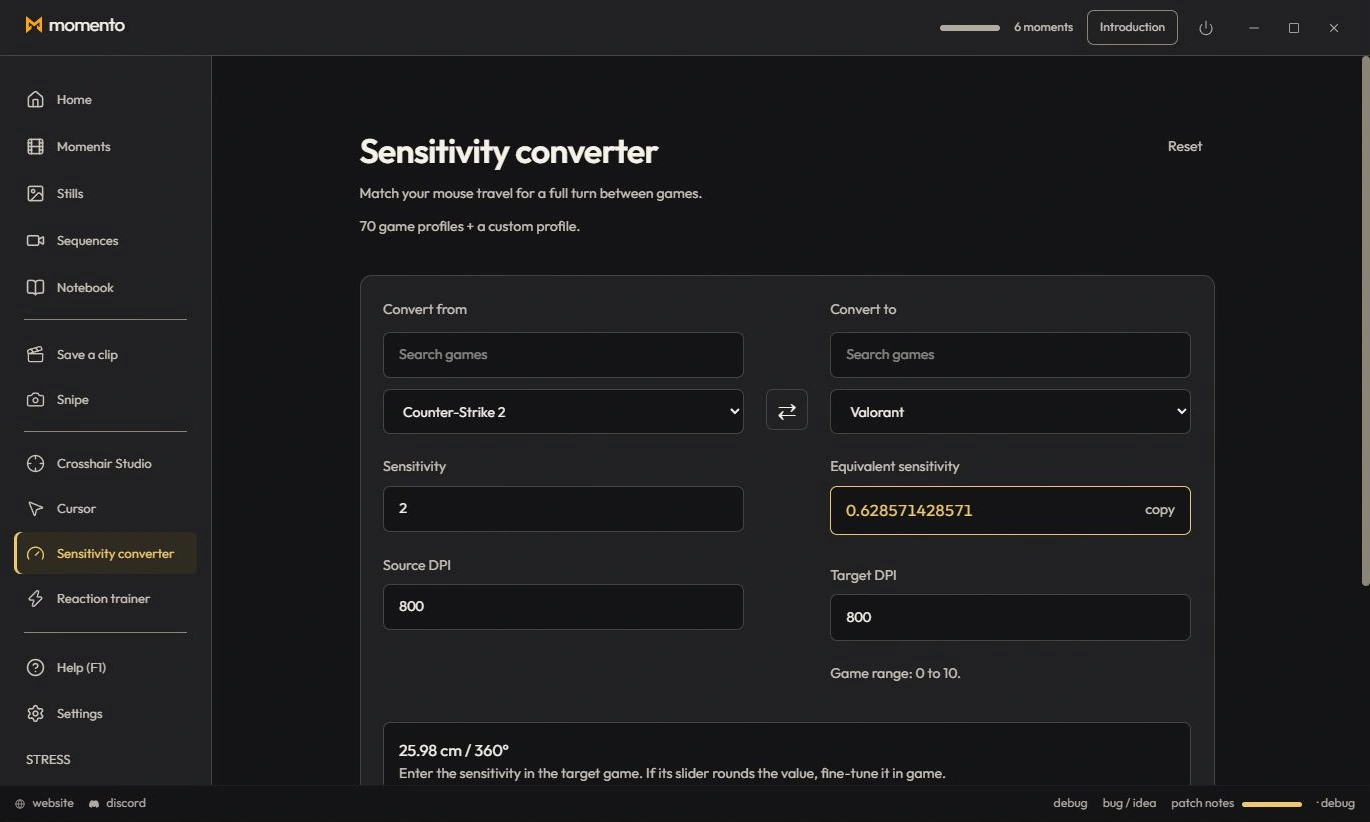
Product illustrations show Momento in English with sample content. Choose the tools that fit your session; their availability depends on the game and your setup.
Replay a Moment, extract a frame as an Instant, annotate the image and pin your media in Notebook. Connect game clips, screenshots and notes in Momento.
Capture a text area with Snipe, open the Instant, check the recognised text and translate it locally on demand in Momento for Windows 11.
Record with REC, find the session in Sequences, trim it, adjust the available audio tracks and save a short MP4 or an optional silent GIF in Momento.
Reuse a Crosshair Studio design in Cursor Studio. Preview its size, choose desktop or game mode, apply it and restore the normal Windows pointer in Momento.
Use Crosshair Studio and save gameplay clips in Momento, a Windows 11 gaming toolbox. Explore the workflow, local files, Microsoft Store download and paid access.