
Choose your PC gaming tools with Momento
Choose a Windows 11 gaming toolbox for your needs: crosshairs, gameplay clips, editing, screenshots, notes and sensitivity conversion in Momento.
Momento · Windows 11
Save a game frame as an Instant with Ctrl+F8, or capture the full screen outside a game. Find your screenshots in the gallery to edit, annotate or translate their text on demand.
Windows 11 · Account and purchase in the app
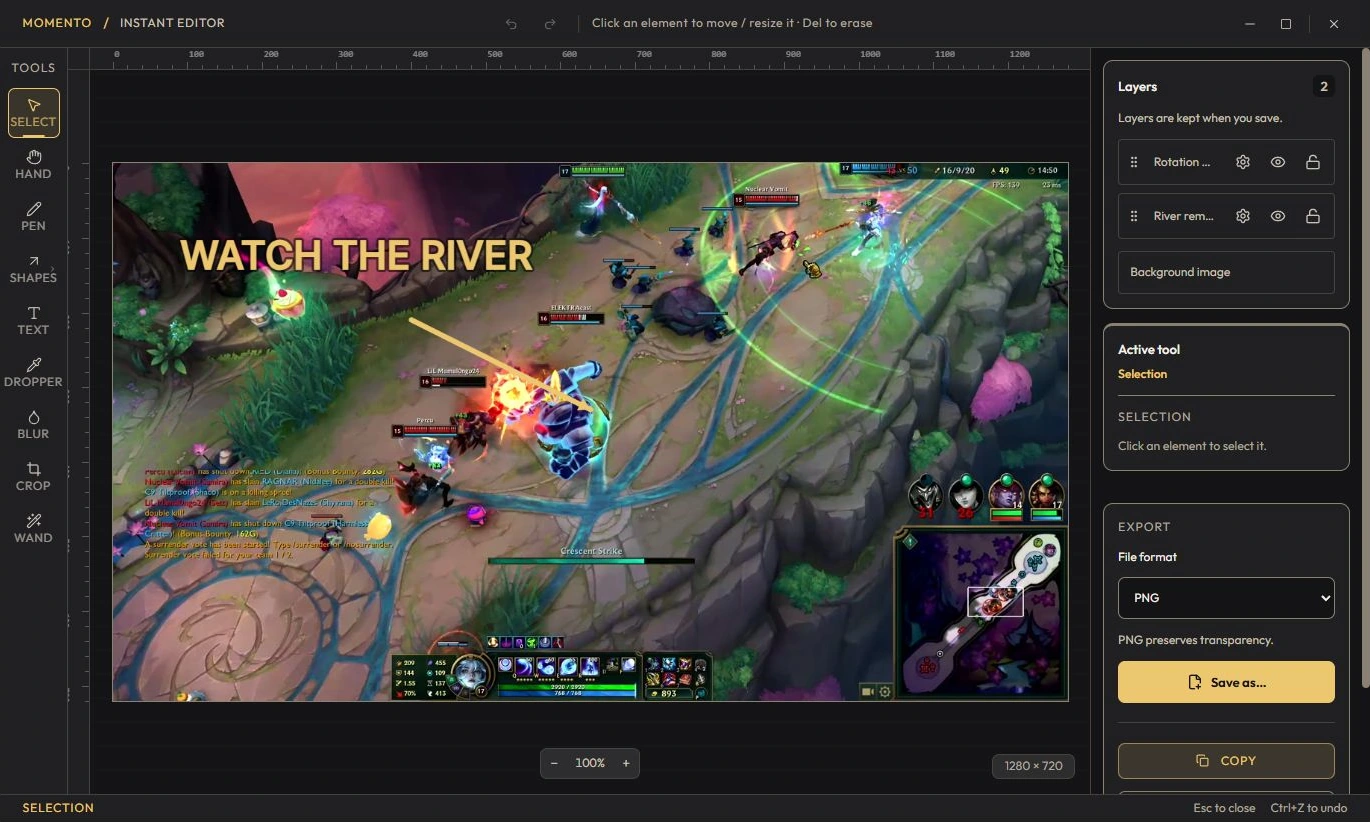
Press Ctrl+F8 (by default) to capture the current game frame — or the full screen outside a game. The capture lands in the Instants tab.
The Instants tab arranges your captures in a grid, by date.
From a Moment or Sequence player, you can turn the shown frame into a new Instant (full-resolution, editable) — perfect to isolate a key moment, annotate it, or use it as a thumbnail.
Extract a frame from a Moment or Sequence as an Instant, edit it and use an image as a custom video cover.
Choose a range in the editor and export a GIF. Find the exported animation in Instants.
Pin a Moment or Instant inside a note or on the freeform canvas to keep the media next to your explanation.
Choose a Windows 11 gaming toolbox for your needs: crosshairs, gameplay clips, editing, screenshots, notes and sensitivity conversion in Momento.
Replay a Moment, extract a frame as an Instant, annotate the image and pin your media in Notebook. Connect game clips, screenshots and notes in Momento.
Capture a text area with Snipe, open the Instant, check the recognised text and translate it locally on demand in Momento for Windows 11.