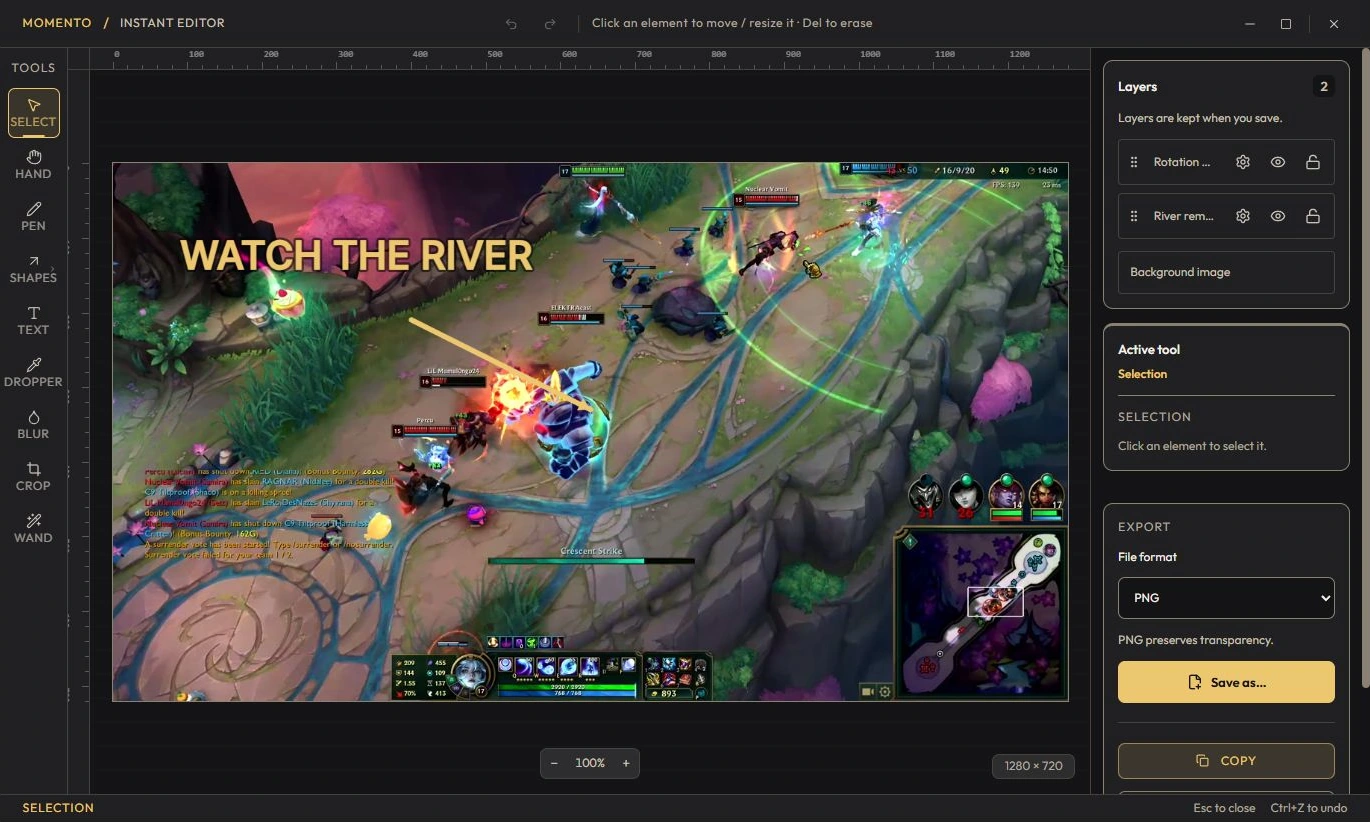
English interface, illustrated with sample content. Capture an area: Snipe (Win+Shift+S) Press Win+Shift+S (by default, Momento replaces the Windows capture tool), or click the “Snipe” button in the Instants tab. The screen freezes. Pick a mode at the top: Rectangle, Circle, Freeform, or Text (OCR). Drag to select the area (a single click = full screen). The area is copied to the clipboard AND saved to Instants. Esc, right-click or the cross cancel.
Tip — Text (OCR) reads the selected area locally and copies the result. Choose the source language when automatic detection is inaccurate; recognition depends on the image and language.
Momento and the Windows capture tool On first launch, Momento enables “Replace the Windows capture tool”: Win+Shift+S opens Momento’s Snipe instead of the Windows tool. To go back to the Windows tool: Settings → Shortcuts, disable the option — Snipe then returns to Ctrl+Shift+S. Please note — The shortcut depends on your installed version and Windows configuration. If both capture tools open, include your Momento version and Store installation in a bug report. Do not disable Windows security protections.
Find the tools for your next session Capture a text area with Snipe, open the Instant, check the recognised text and translate it locally on demand in Momento for Windows 11.
Gaming guides Full manual