
Translate the text in a game screenshot on your PC
Capture a text area with Snipe, open the Instant, check the recognised text and translate it locally on demand in Momento for Windows 11.
Momento · Windows 11
Recognise and translate text from screenshots on your PC, on demand. The local language pack also translates a text selection or a whole Notebook note.
Windows 11 · Account and purchase in the app
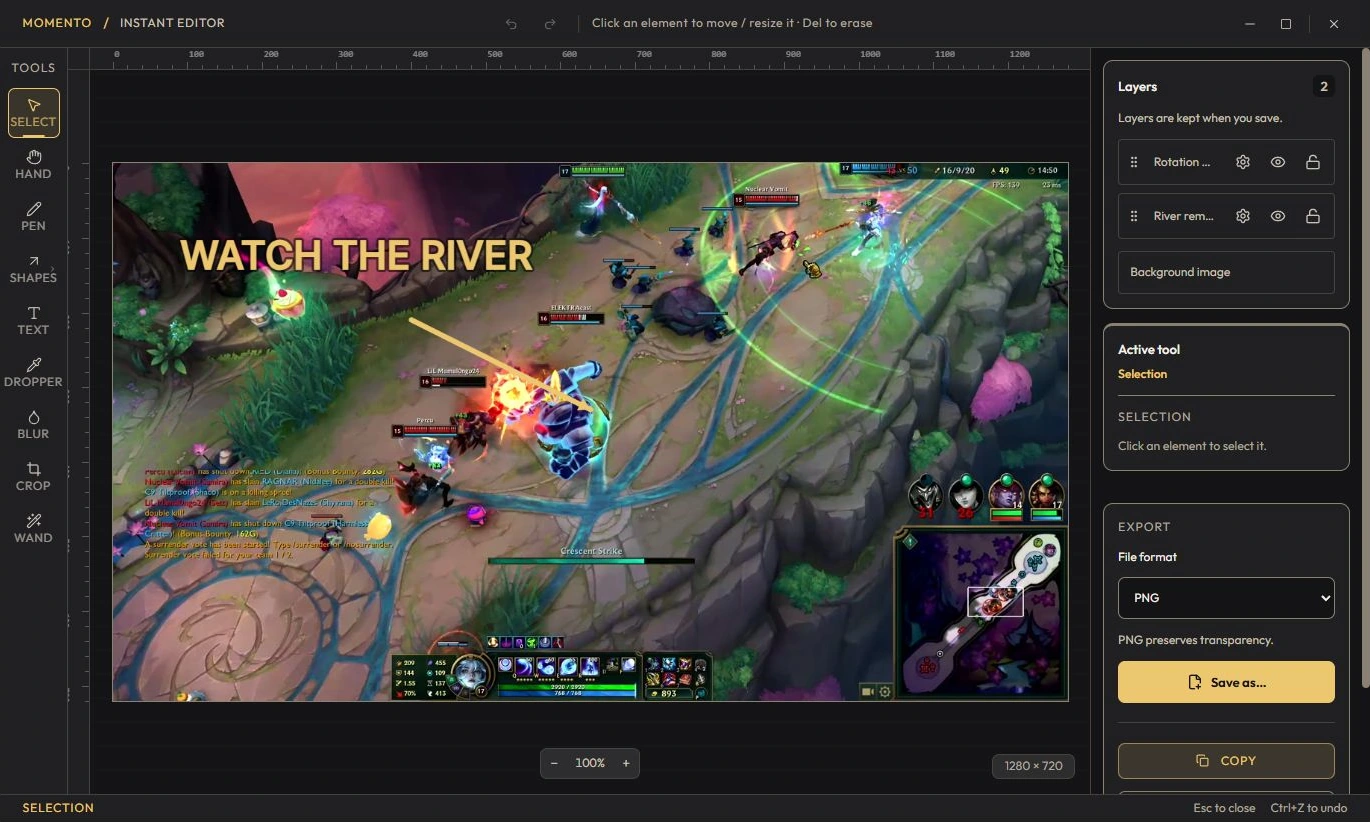
Copy the original text or translation. Processing runs on your PC, on demand, without sending the image or text to a translation service. It works offline with the bundled language pack; results may contain errors. If the pack is missing, update or repair the installation.
The area is copied to the clipboard AND saved to Instants. Esc, right-click or the cross cancel.
Notebook also lets you translate a text selection or the entire note on demand using the local language tools. Review the result after translation and undo with Ctrl+Z if needed.
Capture a text area with Snipe, open the Instant, check the recognised text and translate it locally on demand in Momento for Windows 11.