
Choose your PC gaming tools with Momento
Choose a Windows 11 gaming toolbox for your needs: crosshairs, gameplay clips, editing, screenshots, notes and sensitivity conversion in Momento.
Momento · Windows 11
Keep builds, strategies and checklists beside pinned clips and screenshots in Notebook. Notes save automatically, with game labels and a reading view for a second screen.
Windows 11 · Account and purchase in the app
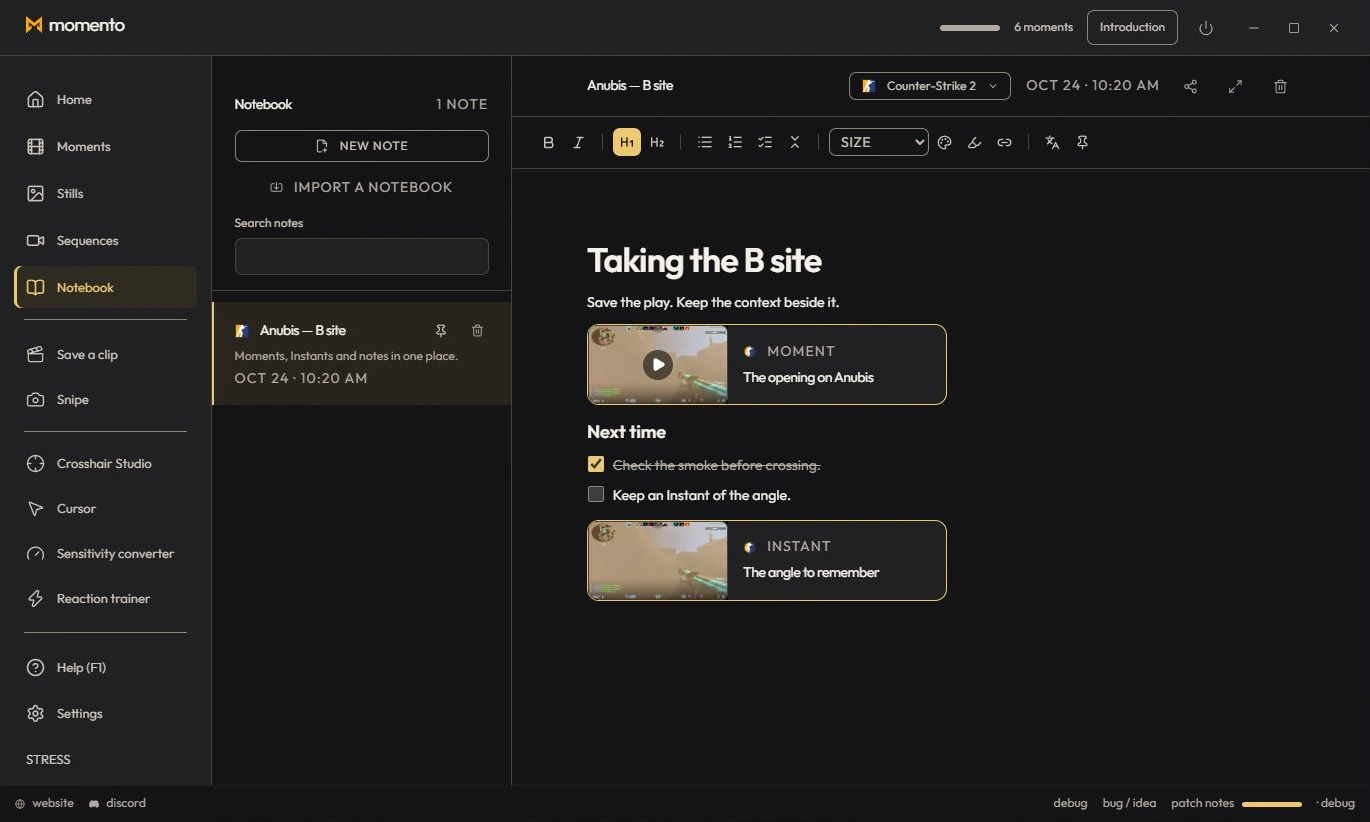
The Notebook is your gamer notepad: builds, strategies, craft checklists, raid plans. Notebook tab — the list of your notes on the left, the editor on the right.
Everything saves automatically: there’s no “save” button. Create a note with “New note”.
Paste an image (Ctrl+V) or drag and drop an image file into the editor. Then select the image to move it, resize it (corner handle) or align it left, center or right.
Assign a game to a note via the “Game” selector in the editor header. The list then filters by game (when several games are tagged).
Notebook also lets you translate a text selection or the entire note on demand using the local language tools. Review the result after translation and undo with Ctrl+Z if needed.
Pin a Moment or Instant inside a note or on the freeform canvas to keep the media next to your explanation.
Choose a Windows 11 gaming toolbox for your needs: crosshairs, gameplay clips, editing, screenshots, notes and sensitivity conversion in Momento.
Replay a Moment, extract a frame as an Instant, annotate the image and pin your media in Notebook. Connect game clips, screenshots and notes in Momento.