
Momento · Windows 11
Gaming whiteboard
Arrange text, images, drawings, checklists and playable Moments on a freeform whiteboard. Keep a raid plan or an annotated strategy in a canvas that saves automatically.
Windows 11 · Account and purchase in the app
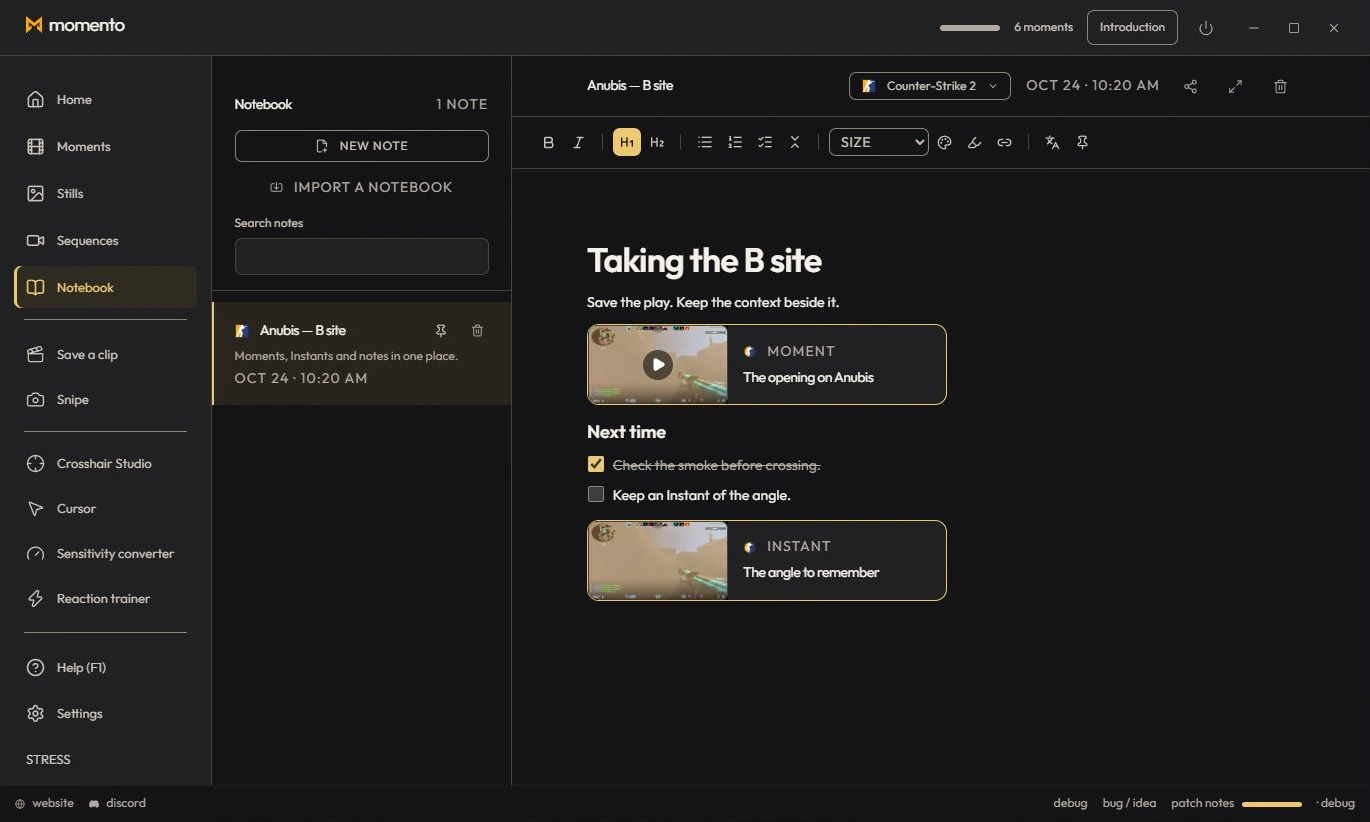
The whiteboard (free canvas)
Alongside classic notes, “New whiteboard” creates a free canvas: place elements wherever you want, move and resize them — perfect for a raid plan, a comp or an annotated map.
- Double-click anywhere to drop text; drag to move.
- Add images, shapes, pen drawing — and even your Moments: clips play right on the canvas, just like YouTube or Twitch videos.
- Checklists with a progress counter (rows move together, checked = struck through).
- Collapsible sections: group an area under a title and fold it in one click — the state is remembered.
Pin a Moment or an Instant
- In a note, click “Pin a Moment / an Instant”.
- Pick from the Instants tab (screenshots) or Moments (clips).
- A clickable card is inserted: it opens the clip or the image. Your notes and your moments are linked.
Use the tools together
Keep clips, screenshots and notes together
Pin a Moment or Instant inside a note or on the freeform canvas to keep the media next to your explanation.