
Momento · Windows 11
Share clips and notebooks
Share a clip or Notebook through an unlisted link when you choose. Recipients can open it in a browser; clip links expire after 30 days and imported notebooks become independent copies.
Windows 11 · Account and purchase in the app
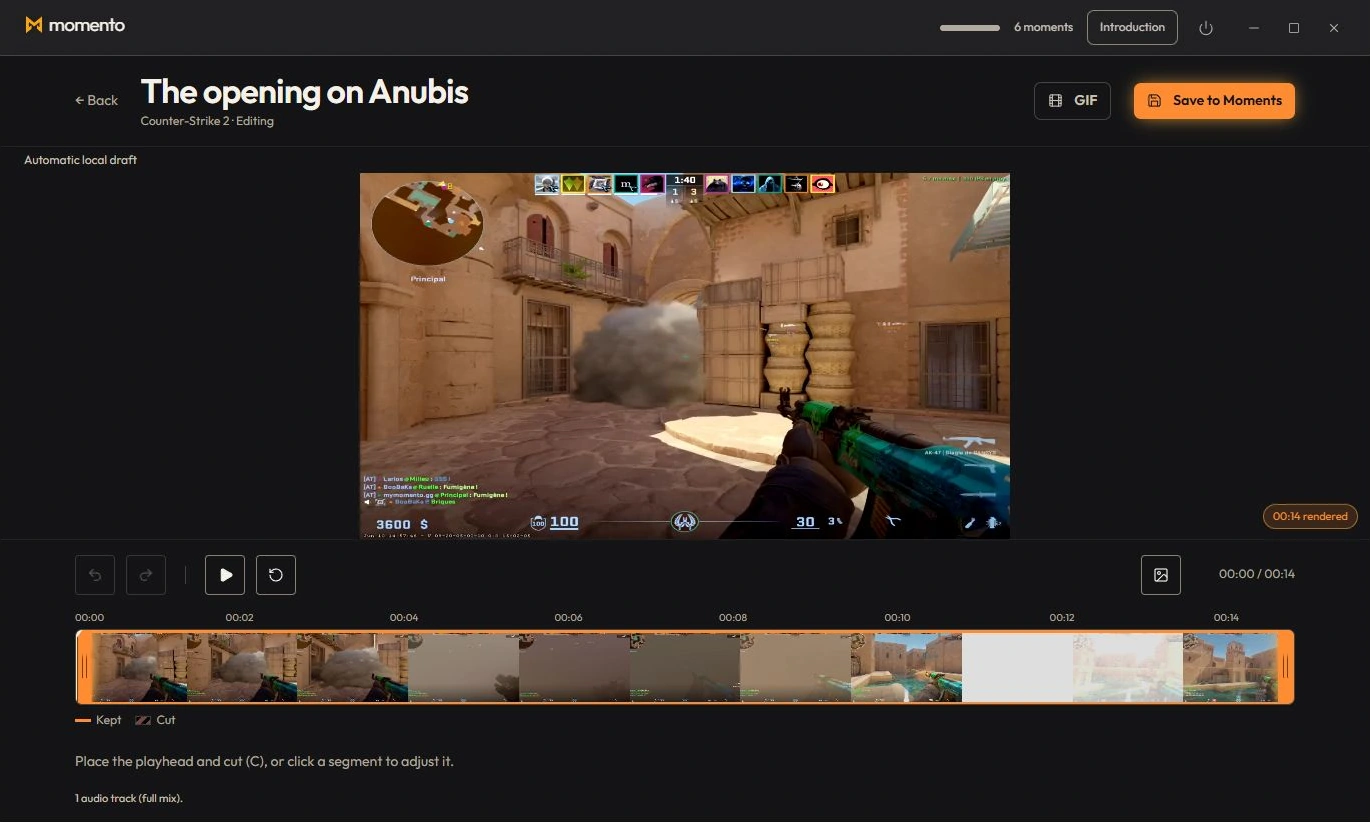
Share a clip via link
Sharing uploads a clip only when you request it and copies a public, unlisted link. Anyone with the link can watch in a browser without installing Momento or signing in.
- Hover or open the clip, then click “Share”: a window opens to pick, with checkboxes, the info shown around the clip (weapon, champion, KDA, map…). You can also “Mute out-of-game sounds” to keep only the game audio (mutes Discord, music, notifications).
- The link (mymomento.gg/c/…) is copied to your clipboard.
- Paste it into Discord, X, Facebook or any chat.
Share a notebook
You can send a full notebook — text, images, pinned Instants and Moments — to someone else via a simple link.
- Open the note, then click the “Share” icon at the top right of the editor.
- Momento prepares the notebook (uploading the images and clips to the cloud), then copies the link (mymomento.gg/carnet/…) to your clipboard.
- Paste this link wherever you want: Discord, a private message, etc.
Import a shared notebook
When someone shares a notebook with you, you add it to your own notebooks in one of these two ways:
- The simplest: on the link page (mymomento.gg/carnet/…), click “Open in Momento” — the app opens on the Notebook and imports it on its own.
- Otherwise, in Momento: Notebook tab → “Import a notebook”, paste the link, then “Import”.
Your data stays with you
Your gameplay, Instants and notebooks remain local unless you explicitly share them. Account, licence and automatic technical reports use online services; “local files” does not mean the app never connects.
Sharing uploads the selected clip or notebook to create an unlisted link; clip links expire after 30 days. Automatic diagnostics do not send video, images, audio, notebook text or raw logs. Read the site privacy policy for the data and retention details.