
Choose your PC gaming tools with Momento
Choose a Windows 11 gaming toolbox for your needs: crosshairs, gameplay clips, editing, screenshots, notes and sensitivity conversion in Momento.
Keep an action and your explanation together. A clip can provide the image you want to discuss, and Notebook can keep the video, annotated image and notes in the same place.
Windows 11 · Account and purchase in the app
Open a Moment in the player and pause on the frame you want to discuss. A Sequence can be the starting point for the same image workflow.
Explore this tool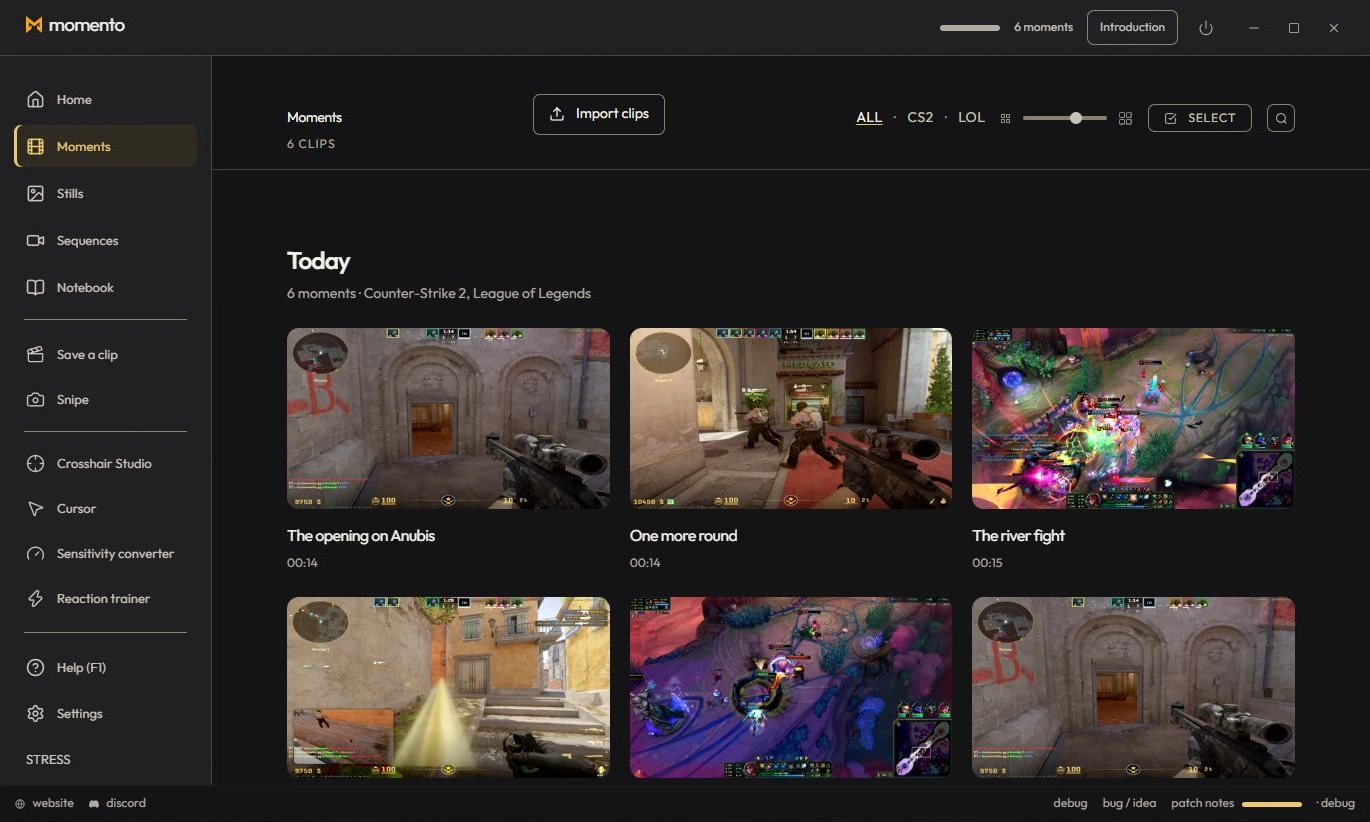
Use Grab frame to create an Instant from the displayed video frame. The image joins your Instants gallery, ready to open and edit.
Explore this tool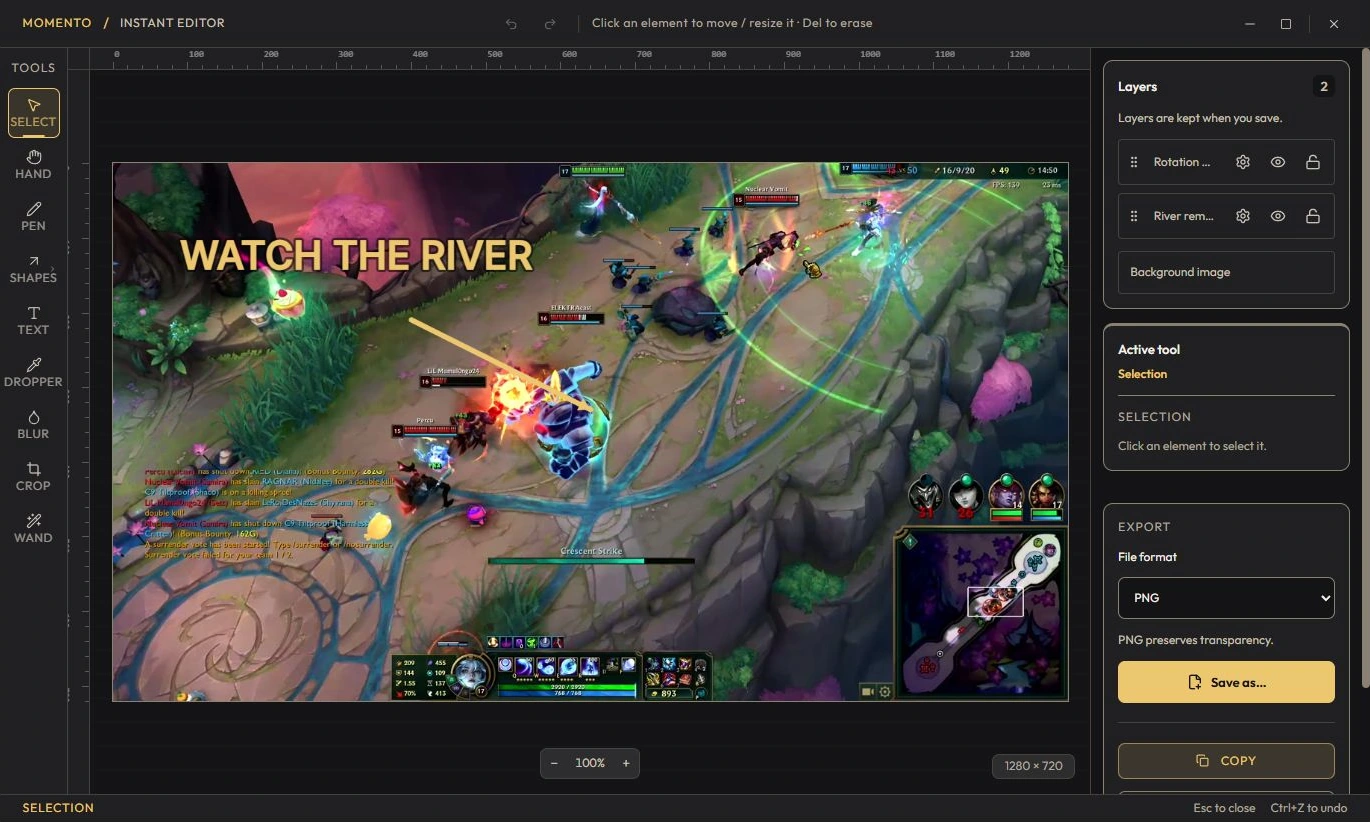
Add an arrow, text or a highlight in the image editor. Save a copy to keep the original Instant and create a separate annotated image.
Explore this toolIn a note, pin the Moment and the annotated Instant, then add your explanation or checklist. The media stay beside your notes so you can return to the action later.
Explore this tool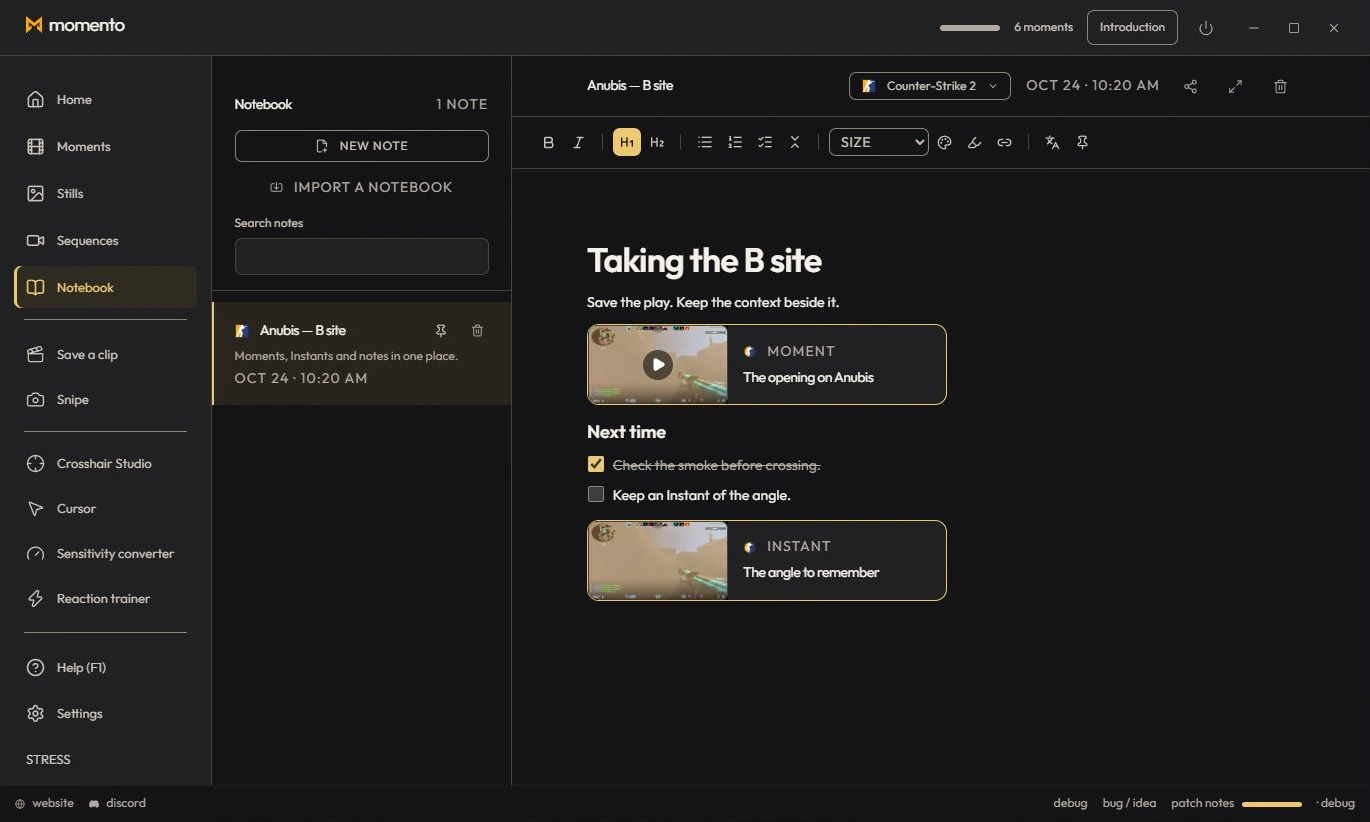
Product illustrations use the English interface and sample content. Your clips, images and notes stay on your PC; sharing a notebook is a separate action you choose.
Choose a Windows 11 gaming toolbox for your needs: crosshairs, gameplay clips, editing, screenshots, notes and sensitivity conversion in Momento.
Capture a text area with Snipe, open the Instant, check the recognised text and translate it locally on demand in Momento for Windows 11.
Record with REC, find the session in Sequences, trim it, adjust the available audio tracks and save a short MP4 or an optional silent GIF in Momento.
Reuse a Crosshair Studio design in Cursor Studio. Preview its size, choose desktop or game mode, apply it and restore the normal Windows pointer in Momento.
Use Crosshair Studio and save gameplay clips in Momento, a Windows 11 gaming toolbox. Explore the workflow, local files, Microsoft Store download and paid access.