
Choose your PC gaming tools with Momento
Choose a Windows 11 gaming toolbox for your needs: crosshairs, gameplay clips, editing, screenshots, notes and sensitivity conversion in Momento.
A fixed aiming reticle and the pointer you move with your mouse serve different purposes. Momento lets you reuse the design from Crosshair Studio in Cursor Studio, so you can try the same shape as a Windows pointer. Prepare the design first, then check the cursor preview and its application mode before changing the system pointer.
Windows 11 · Account and purchase in the app
Open Crosshair Studio, choose a model and adjust its shape, colour, size and outline. Save or select the profile you want to use so there is an active design for Cursor Studio to retrieve. Consider how the shape will look as a small moving pointer, with enough contrast on the backgrounds you use. This step prepares the design; applying a Windows cursor happens in Cursor Studio.
Explore this tool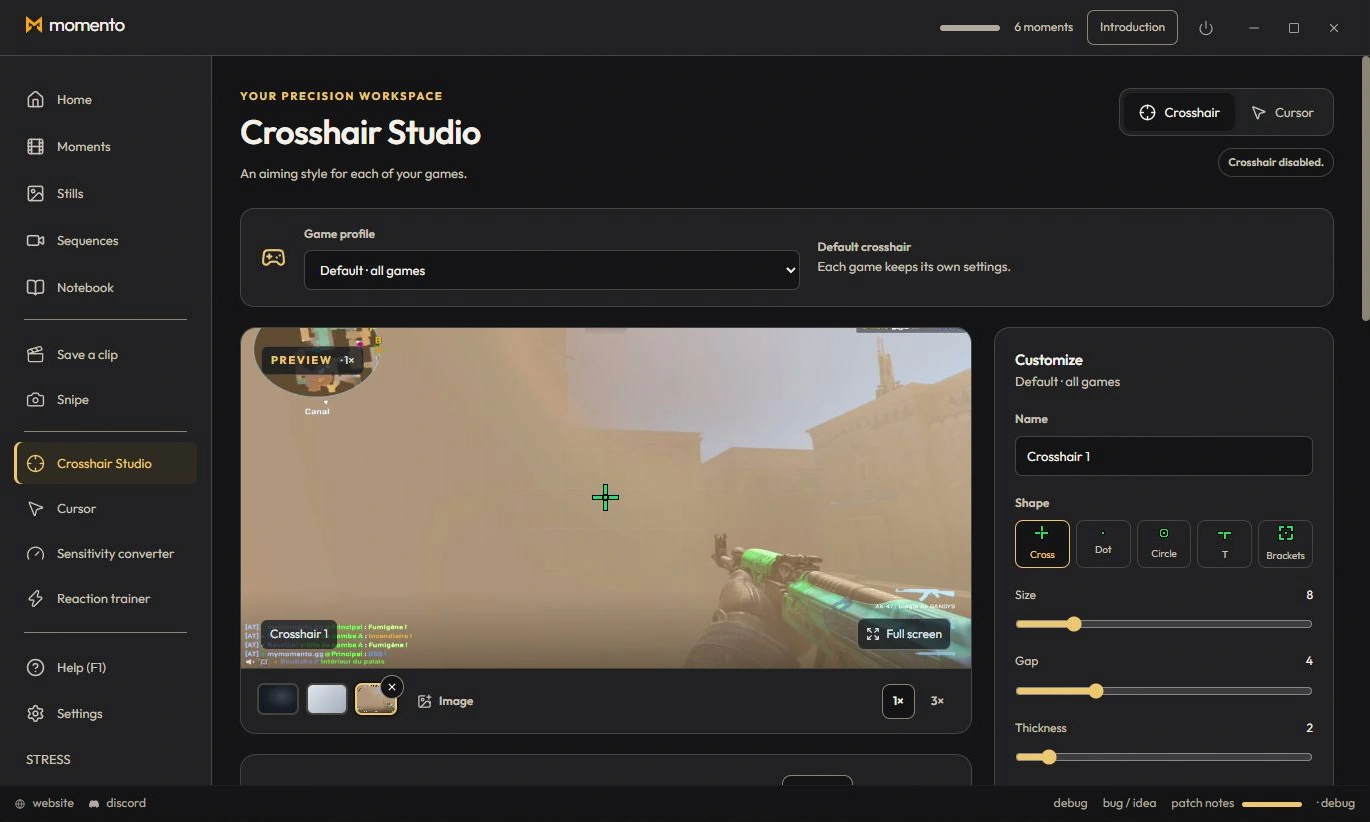
Open Cursor Studio and choose the action to use your crosshair. Check the selected design in the preview, try the available backgrounds and adjust its size. Choose desktop mode to apply it across Windows, or game mode to arm automatic use when a recognised game is active. Selecting a design or mode only prepares the change: use Apply when you are ready. Check the pointer where it is normally visible. If the game draws its own cursor or hides the Windows pointer, the result may differ. Restore Windows returns the normal pointer and disables automatic game mode; simply reopening Cursor Studio does not apply the design again.
Explore this toolCustomising the Windows pointer does not guarantee that every game will display it. Check the result in the game and display mode you use. The illustration shows Crosshair Studio in English with sample content.
Choose a Windows 11 gaming toolbox for your needs: crosshairs, gameplay clips, editing, screenshots, notes and sensitivity conversion in Momento.
Replay a Moment, extract a frame as an Instant, annotate the image and pin your media in Notebook. Connect game clips, screenshots and notes in Momento.
Capture a text area with Snipe, open the Instant, check the recognised text and translate it locally on demand in Momento for Windows 11.
Record with REC, find the session in Sequences, trim it, adjust the available audio tracks and save a short MP4 or an optional silent GIF in Momento.
Use Crosshair Studio and save gameplay clips in Momento, a Windows 11 gaming toolbox. Explore the workflow, local files, Microsoft Store download and paid access.