
Choose your PC gaming tools with Momento
Choose a Windows 11 gaming toolbox for your needs: crosshairs, gameplay clips, editing, screenshots, notes and sensitivity conversion in Momento.
Sometimes you want to keep a whole session and choose the useful moments later. REC saves the long recording; Sequences keeps it available for review. Use the editor to turn one passage into a separate Moment, with the audio you want to keep. A GIF is another output for a brief excerpt that does not need sound.
Windows 11 · Account and purchase in the app
Before starting, check that Momento is capturing your game and that your storage has room for a long video. Start REC from the recording page or with Ctrl+F10, its default configurable shortcut. Stop it with the same control when the session is finished. Allow finalisation to complete before looking for the recording: the result is the full session, ready to review.
Explore this toolOpen Sequences and find the recording by date, game or the labels you use. Open it in the player and locate the action you want to keep. Renaming the session or adding a label can make the source easier to find again. Keep the long recording available while you prepare the shorter version.
Explore this toolFrom the open Sequence, choose the editor. Set the beginning and end of the passage on the timeline, then play it to check that the lead-in and result are included. Cut or exclude unwanted passages if needed. You are preparing a shorter montage; the final save will create a Moment from the retained video.
Explore this tool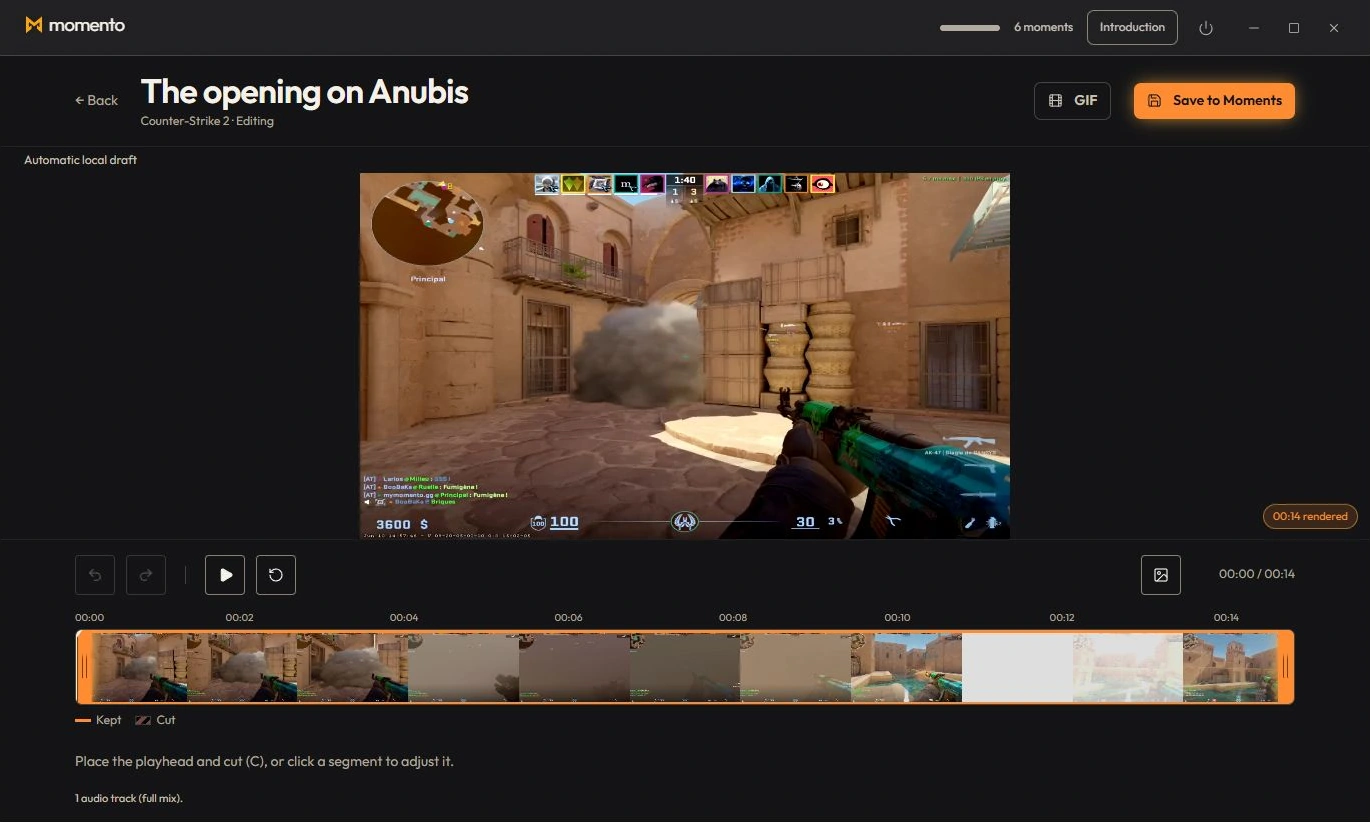
Listen to the excerpt in the editor before exporting. If the source contains separate game, Windows or microphone tracks, use their volume, mute and solo controls to prepare the mix. The available controls depend on the tracks recorded in that file. Check speech and game sound together; the MP4 will use the mix you keep, including the microphone when it remains enabled.
Explore this toolSave the montage in Moments to create the short MP4, then open that new clip and check its picture, duration and audio. Give it a useful name or label so you can find the action without opening the full session again. Keep your source Sequence until you have checked the saved result; deciding whether to remove the long recording is a separate choice.
Explore this tool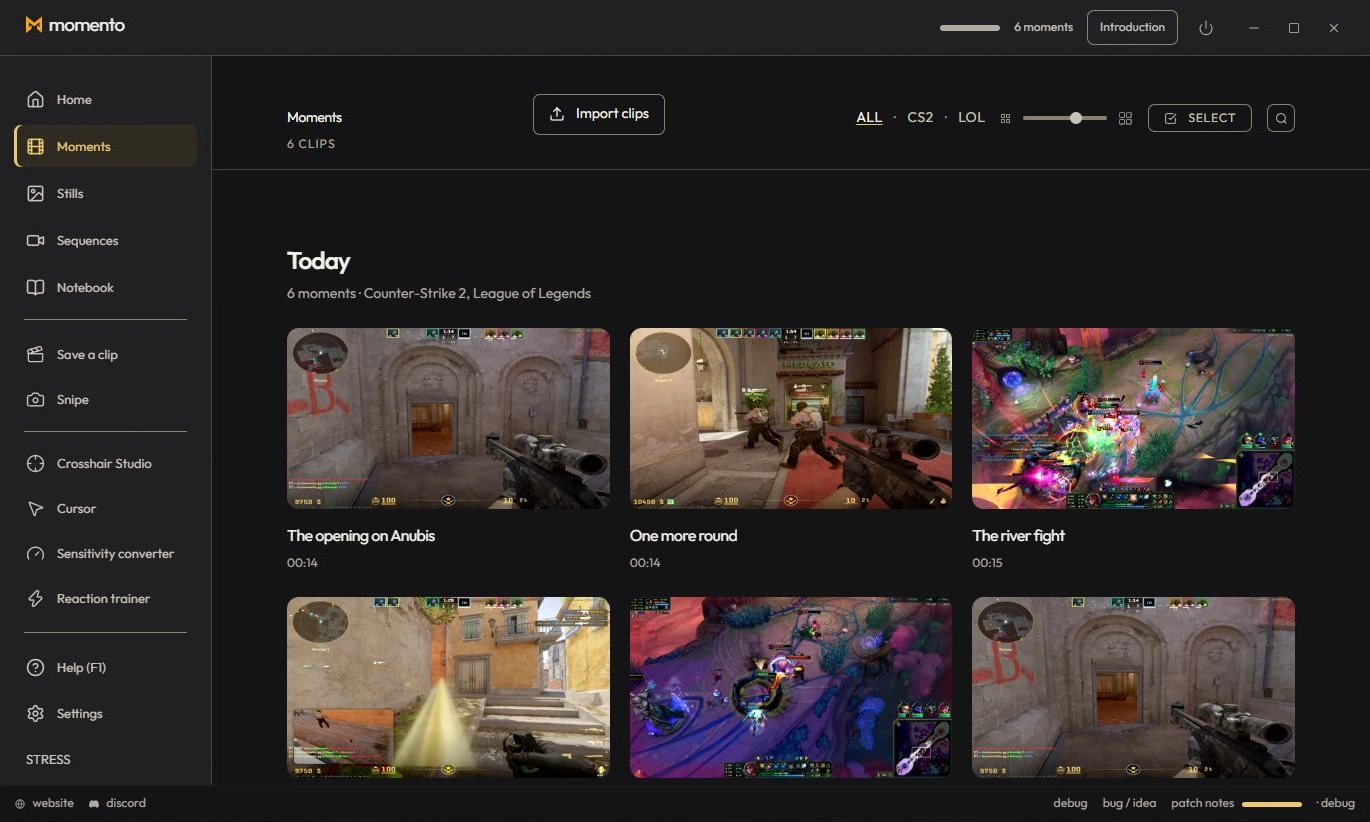
For an optional silent loop, return to the editor and keep an excerpt of no more than 15 seconds. Choose GIF and one of the offered sizes, then find the exported animation in Instants. You can copy it for a chat or forum. A GIF has no sound, so keep the MP4 when the voice or game audio is part of the moment.
Explore this toolREC requires an active supported game capture; availability depends on your game and configuration. Your recordings and exports stay on the PC unless you choose to share them. The product illustrations show the Moments library and editor in English with sample content.
Choose a Windows 11 gaming toolbox for your needs: crosshairs, gameplay clips, editing, screenshots, notes and sensitivity conversion in Momento.
Replay a Moment, extract a frame as an Instant, annotate the image and pin your media in Notebook. Connect game clips, screenshots and notes in Momento.
Capture a text area with Snipe, open the Instant, check the recognised text and translate it locally on demand in Momento for Windows 11.
Reuse a Crosshair Studio design in Cursor Studio. Preview its size, choose desktop or game mode, apply it and restore the normal Windows pointer in Momento.
Use Crosshair Studio and save gameplay clips in Momento, a Windows 11 gaming toolbox. Explore the workflow, local files, Microsoft Store download and paid access.