
Choose your PC gaming tools with Momento
Choose a Windows 11 gaming toolbox for your needs: crosshairs, gameplay clips, editing, screenshots, notes and sensitivity conversion in Momento.
An item description or message may be visible in a game without being selectable as text. Keep it as an image first. In Momento, you can open that Instant, recognise its text, correct a misread word and translate the result. You choose when to start; this workflow reads a saved image.
Windows 11 · Account and purchase in the app
Open Snipe from Instants, or use its configured shortcut. Choose a rectangular area around the text you want to read, leaving the full words and lines visible. Keeping the selection focused gives you a useful image to check afterwards. The selected area is saved in Instants and copied to the clipboard; cancel and try again if you selected the wrong detail.
Explore this toolOpen the saved Instant in the viewer and check that the letters are readable and the sentence is complete. A clip can also be your starting point: grab its displayed frame to create an Instant. If the text is cut off or too unclear, make a better capture before relying on recognition. You now have the still image from which Momento will read the text.
Explore this tool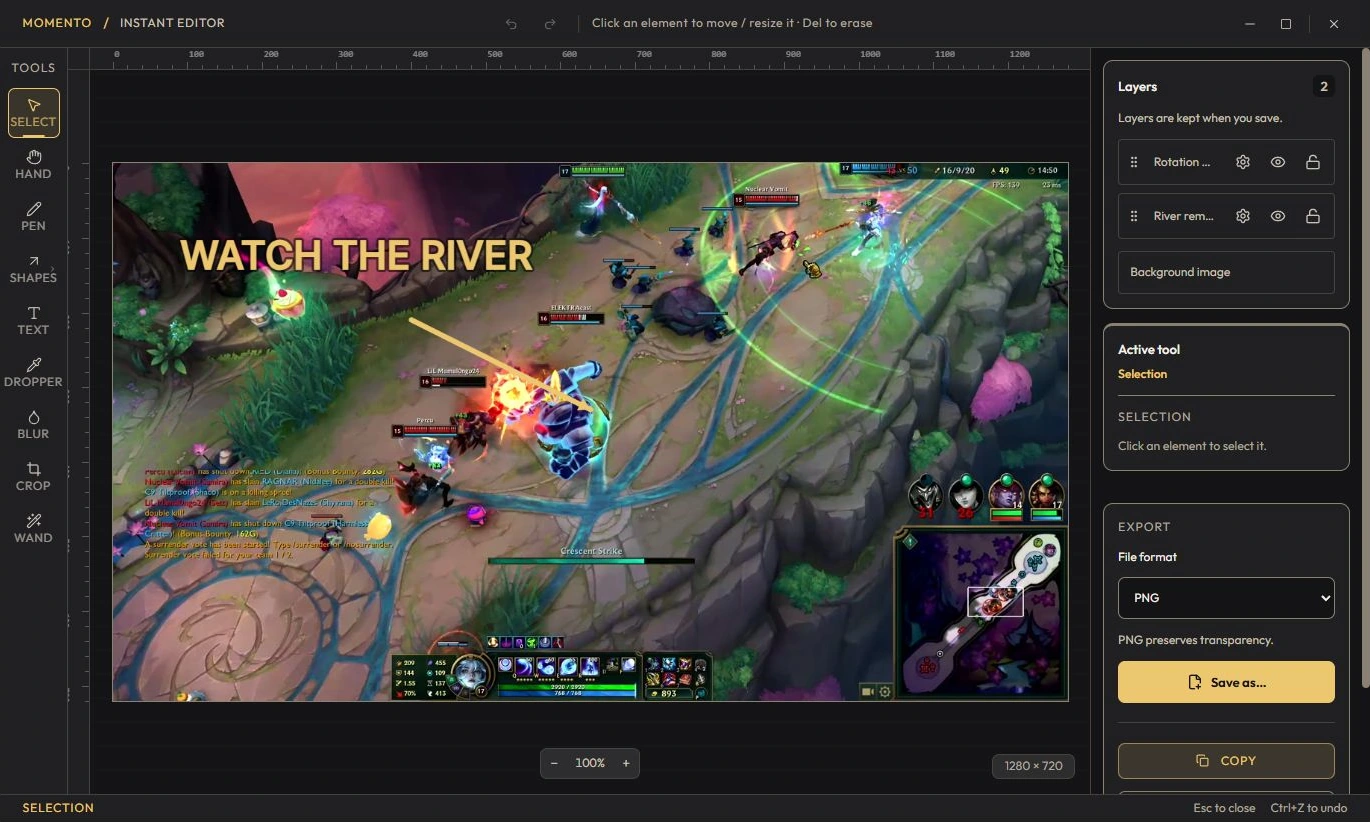
In the Instant viewer, choose the text translation action. Select the OCR source language when needed and your translation language. Check the recognised text against the image: the source field is editable, so you can fix missing letters or unwanted line breaks and translate the corrected text again. Read the result before copying the original or translation. Recognition and translation can make mistakes, especially with small or stylised lettering; the output remains text you can review.
Explore this toolOCR and translation run on your PC when you request them, without sending the image or text to a translation service. The bundled local pack is required; if it is missing, update or repair the installation. The illustration shows the English Instants image editor with sample content.
Choose a Windows 11 gaming toolbox for your needs: crosshairs, gameplay clips, editing, screenshots, notes and sensitivity conversion in Momento.
Replay a Moment, extract a frame as an Instant, annotate the image and pin your media in Notebook. Connect game clips, screenshots and notes in Momento.
Record with REC, find the session in Sequences, trim it, adjust the available audio tracks and save a short MP4 or an optional silent GIF in Momento.
Reuse a Crosshair Studio design in Cursor Studio. Preview its size, choose desktop or game mode, apply it and restore the normal Windows pointer in Momento.
Use Crosshair Studio and save gameplay clips in Momento, a Windows 11 gaming toolbox. Explore the workflow, local files, Microsoft Store download and paid access.